
ArbSoul Help
What are you trying to do?
Find the shortest path through a workflow, understand what the app saved, or send us a useful problem report.
15 results found
Show help for
How-to guides
Browse by task
Each guide follows the order you will use in the field or office.
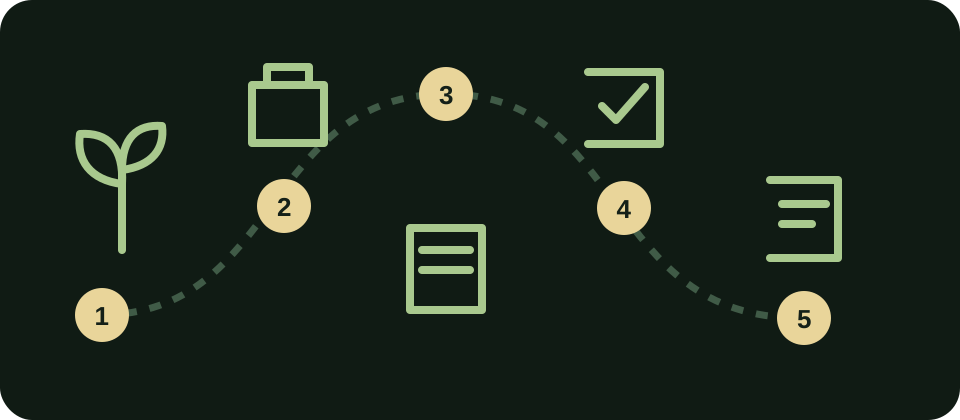
Getting startedStart a professional record
Move from login to a mapped, reviewable record without losing context.
3 min
Start a professional record
Move from login to a mapped, reviewable record without losing context.
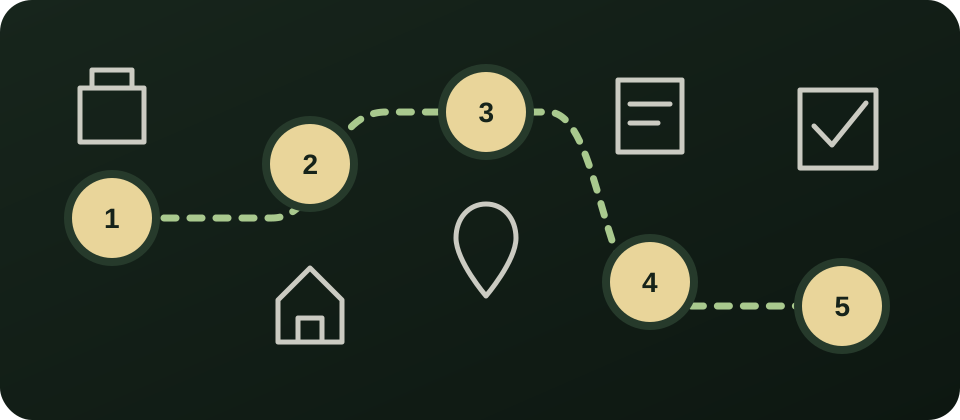
- Sign in and confirm the correct workspace in Settings.
- Choose Tree Inventory, Tree Risk Assessment, Tree Appraisal, Planting, or Landscape Design from Home.
- Select an existing client and property, or create them once with the complete address.
- Let the map open at the property, then pan freely. My Location should recenter only when you request it.
- Complete the guided record, review its required items, and wait for Cloud confirmed before leaving the property.
Use the same property record across modules so trees, assessments, plantings, and history stay connected.
Getting startedConfirm that work is saved
Read the sync state correctly and protect field work during a weak connection.
2 min
Confirm that work is saved
Read the sync state correctly and protect field work during a weak connection.
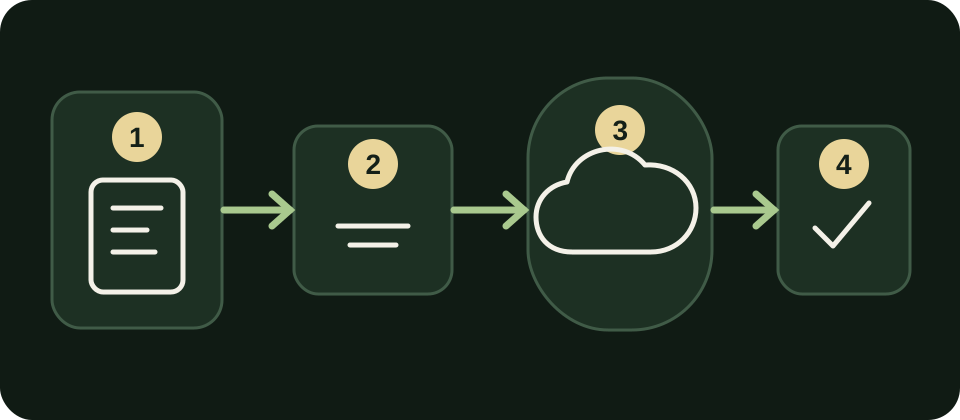
- Saved locally means the device has a durable offline copy, but the cloud has not confirmed it yet.
- Changes pending shows the exact number waiting to upload. Keep the app open when practical.
- Syncing means ArbSoul is uploading changes. Cloud confirmed means the server acknowledged the current revision.
- Failed means the change is still protected locally. Reconnect, retry sync, and do not delete or recreate the record.
- Before switching devices, confirm the same login, workspace, property, and a Cloud confirmed state.
Anything still pending stays on the device until the server acknowledges it. Confirmed local working copies may be cleared only after the retention period.
InventoryComplete a Tree Inventory visit
Map trees quickly, keep identities stable, and finish with a client-ready review.
6 min
Complete a Tree Inventory visit
Map trees quickly, keep identities stable, and finish with a client-ready review.
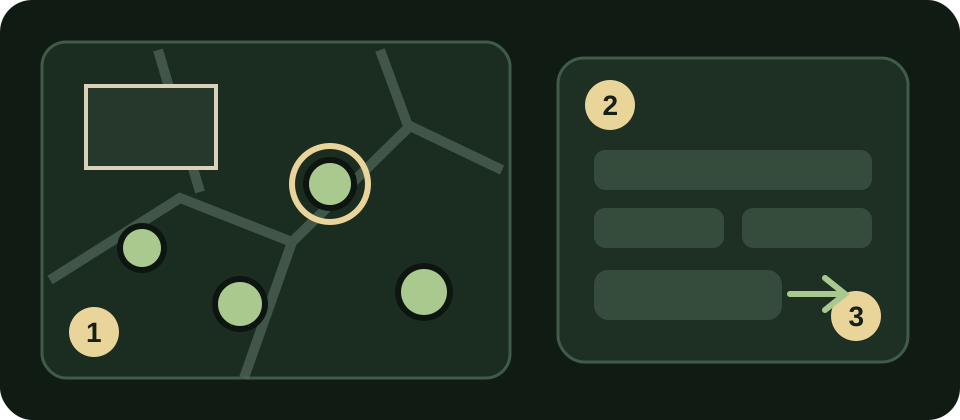
- Start a new inventory, choose whether pricing is included, and confirm the property address.
- Use Add when placing trees and Select when reviewing them. The two modes must never perform each other's action.
- For each tree, record identification confidence, species, DBH, height, crown spread, condition, potential targets, photos, and notes.
- Add detailed recommendations and pricing only when the inventory pricing mode allows it. Save and continue to the next tree.
- Use Clone, then Last or Other Tree, for similar trees. Adjust the new location and every field that differs.
- Finish the visit, resolve only the records shown in readiness review, confirm cloud sync, and build the report.
Every tree keeps one permanent ArbSoul Tree ID. Edit the existing record instead of replacing it when the tree changes over time.
Tree Risk AssessmentComplete a Tree Risk Assessment
Build targets, document findings, and create a defensible professional record.
7 min
Complete a Tree Risk Assessment
Build targets, document findings, and create a defensible professional record.
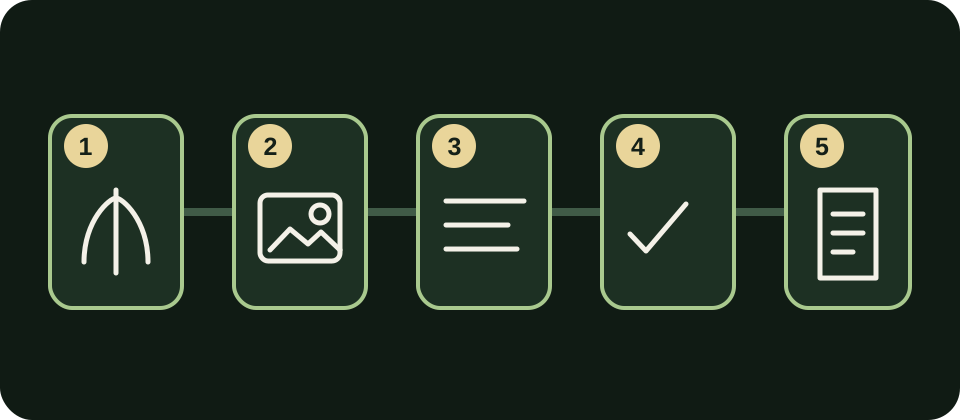
- Create the assessment, select the property, and confirm assessor credentials and inspection conditions.
- Pan and zoom the map, then outline buildings and targets before placing or selecting the assessed tree.
- Use the shared species library or link an existing ArbSoul Tree ID so the assessment joins that tree's history.
- Follow the guided sections for targets, defects, likelihood, consequences, risk rating, photos, recommendations, and reinspection timing.
- Review required evidence and map context, correct the specific flagged records, then export the professional PDF.
Software supports, but does not replace, professional judgment. Treat urgent hazards according to your field protocol.
Tree AppraisalComplete a Tree Appraisal
Document value inputs, damage, evidence, and sources in one guided record.
7 min
Complete a Tree Appraisal
Document value inputs, damage, evidence, and sources in one guided record.
- Create the appraisal, select the property and jurisdiction, and confirm appraiser credentials.
- Place or select the tree on the map and use the shared species library or existing ArbSoul Tree ID.
- Choose the supported valuation basis, enter documented costs, and complete the 1 to 10 condition and location inputs.
- Document partial damage or unauthorized removal, add evidence photos, claim notes when needed, and source links.
- Review the calculation and jurisdiction disclaimer, resolve required items, and export the client-ready report.
The appraiser remains responsible for the method, assumptions, jurisdiction sources, and final reconciled opinion.
PlantingCreate a Planting record
Capture a new tree at installation and hand the client a useful care history.
5 min
Create a Planting record
Capture a new tree at installation and hand the client a useful care history.
- Choose New Planting, then select or add the client and property with its complete address.
- Open the map, draw the home when useful, and place each installed tree at its actual location.
- Record species, install size, installation details, an upright photo, watering method, and relevant notes.
- Choose planting only or the five-year care plan and warranty. ArbSoul builds the correct visit ranges and included care schedule.
- Review the tree list, next-visit ranges, and notes, then build the PDF and client portal handoff.
A planting linked to an existing property should create or update the same tree record in Inventory rather than a disconnected copy.
Landscape DesignBuild a Landscape Design
Establish site conditions first so plant fit and growth views mean something.
8 min
Build a Landscape Design
Establish site conditions first so plant fit and growth views mean something.
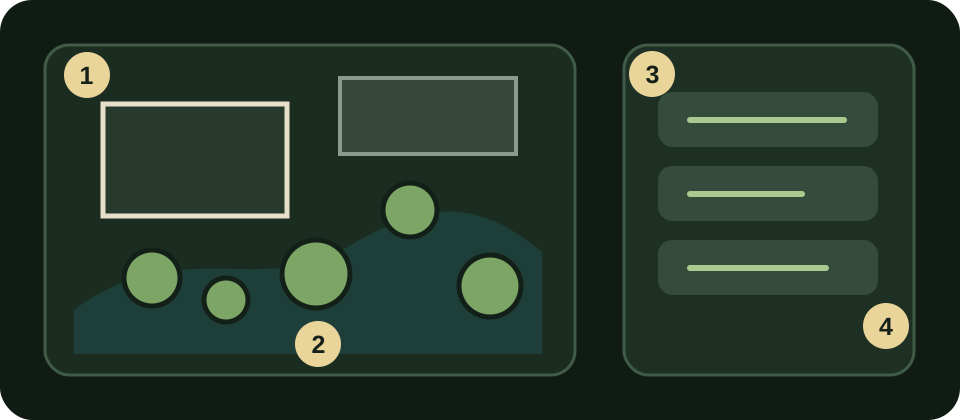
- Create or open a cloud project and set the property address, north direction, and drawing scale.
- Use the map to draw buildings, hardscape, and their heights. Add existing trees and environmental zones such as saturated soil.
- Lock or hide the map after the property geometry is established, then draw beds and measure the plan.
- Add plants from the regional library and review sunlight, moisture, mature size, native preference, and pricing fit.
- Review install, 5-year, 10-year, shade, spring, and fall views as needed, then export the selected client sheets.
Landscape Design is web-first because precise drawing, measurements, and plan review need a larger workspace.
Client PortalInvite a client and explain their access
Share useful records without exposing professional editing controls.
3 min
Invite a client and explain their access
Share useful records without exposing professional editing controls.
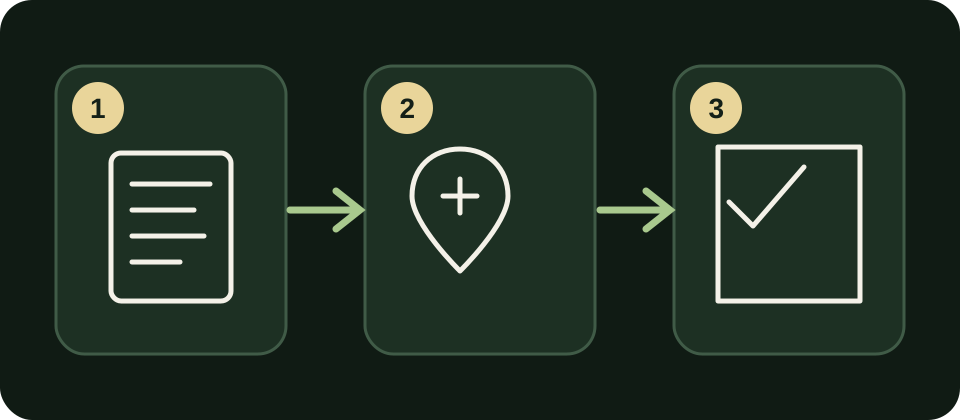
- Open the property's sharing controls, enter the client's exact email, and assign only the intended property.
- Have the client use the newest ArbSoul invitation and sign in with that same email address.
- Clients can view maps, tree profiles, professional findings, reports, and visit updates.
- Clients can add notes, photos, and concern flags. Those contributions are saved separately from professional findings.
- Review new flags in Attention and include them in the next visit agenda when appropriate.
Clients cannot edit tree identity, professional observations, risk ratings, valuations, or recommendations.
ReportsReview, export, and share a report
Correct only incomplete records and keep maps, photos, and report history intact.
4 min
Review, export, and share a report
Correct only incomplete records and keep maps, photos, and report history intact.
- Open Review or Build Report and let ArbSoul identify only records that need attention.
- Open each listed problem directly, complete the missing item, save it, and return to readiness review.
- Confirm the map is visible, evidence photos are synced, credentials are correct, and the current revision is Cloud confirmed.
- Export the PDF, inspect the first page and several individual records, then save or share it.
- Use Report History to reopen the exact published version rather than silently replacing a client record.
If saved information is absent from an export, report a defect. Do not rebuild the property as a workaround.
MunicipalRun a municipal consulting inventory
Recommend work, manage access, and verify completion without turning the inventory into a bid.
6 min
Run a municipal consulting inventory
Recommend work, manage access, and verify completion without turning the inventory into a bid.
- Create or enter the dedicated municipal workspace and select the correct property, district, or management zone.
- Inventory trees and recommendations without pricing when the work is consulting-only.
- Give municipal administrators full workspace access and limit contractors to assigned work and the records needed to complete it.
- Contractors review the original record, perform assigned work, and submit completion details and required after photos.
- Municipal staff review evidence, accept or return the work, and preserve the result in each tree's history.
Municipal workspaces keep their members, properties, trees, recommendations, and reports separate from other organizations.
Troubleshooting
When something is not working
Use these checks for connection, access, map, and export problems. Product defects belong in a bug report.
Trees or properties appear to be missingDo not create replacements yet.
- Confirm the same sign-in email and active workspace used when the records were created.
- Open the correct property and clear map or attention filters.
- Check the sync state and reconnect if changes are pending or failed.
- If records remain missing, keep the page open, copy a Support Snapshot, and report the defect.
Sync stays pending or shows FailedThe local copy should remain protected.
- Restore a stable connection and keep the app in the foreground.
- Use Retry Sync once, then watch the pending count rather than repeatedly refreshing.
- Confirm Cloud confirmed before moving to another device.
- If the count does not fall, copy a Support Snapshot and send the exact visible state.
The map opens in the wrong placeAddress and My Location are navigation aids, not permanent locks.
- Confirm the complete property address, then use the address search to center once.
- Use My Location only when you want to recenter on the device.
- After centering, pan and zoom normally. Turn off Follow Location if it was enabled.
- If the map keeps snapping back, report a map defect with the module and device.
A PDF is missing a map or photoDo not send an incomplete professional report.
- Return to Review and confirm the map and image appear in the record itself.
- Wait for media uploads and the record revision to show Cloud confirmed.
- Export again and inspect the affected page before sharing.
- If saved content is still omitted, report the defect with the Tree ID and PDF page.
A client cannot open an invitationAccess is tied to the exact invited email and assigned property.
- Confirm the invitation was sent to the client's exact sign-in email.
- Send a fresh invitation and have the client use the newest message.
- Confirm the client role and property assignment in the workspace.
- If access still fails, report an access issue without including the client's password.
No guide matched that search.
Try a module name, map, sync, report, photo, or invitation.